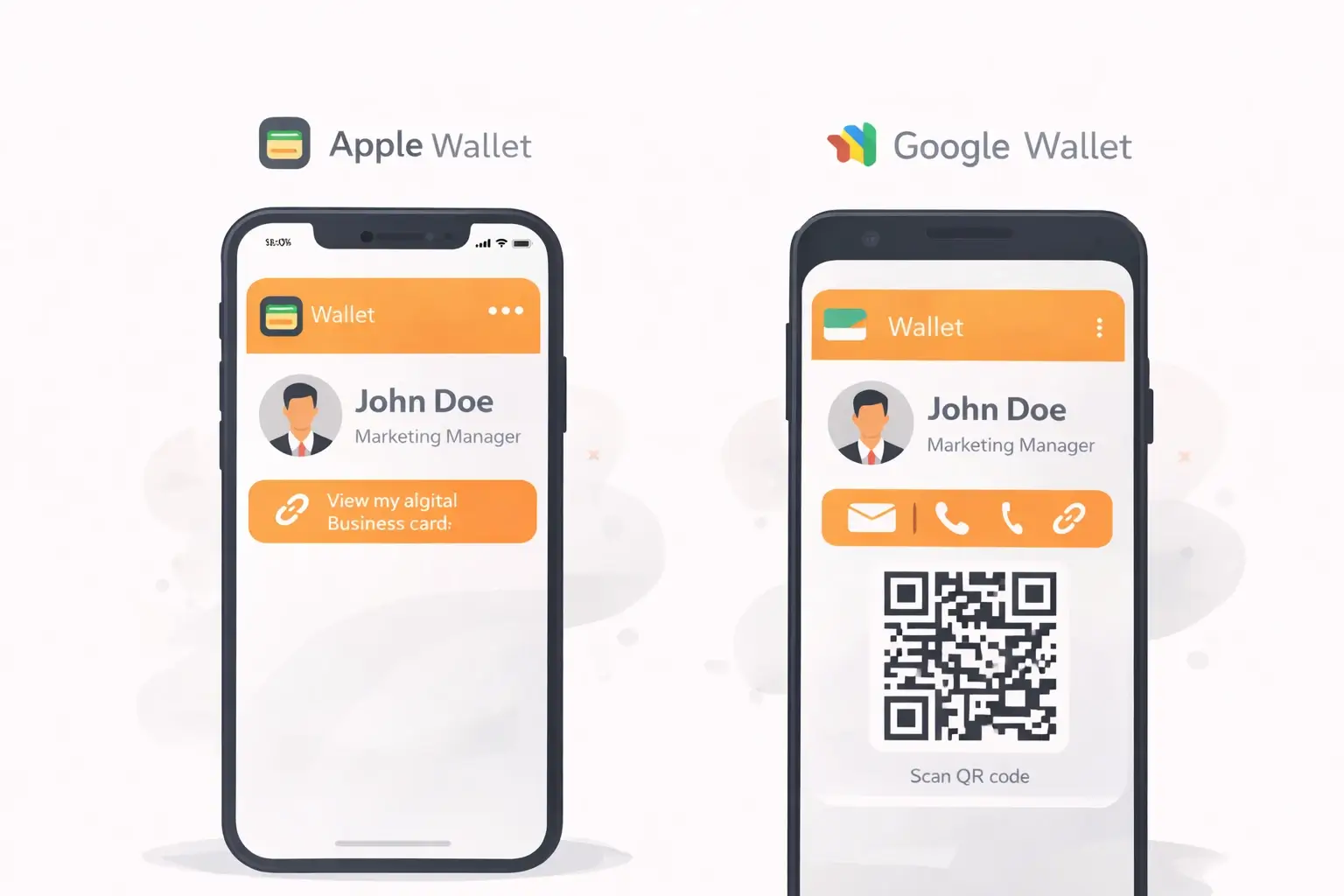
Networking in 2026 moves fast. If your contact info isn’t instantly shareable, you’re forcing people to do work (type your name, search you later, maybe forget you entirely). Saving your digital business card to Apple Wallet or Google Wallet fixes that: one tap, your card is ready to share anywhere. No app required for the other person.
If you’re building your full digital networking setup (QR, NFC, templates, best platforms, costs, and what’s actually working in 2026), read the ultimate guide here: Digital Business Cards in 2026: The Ultimate Guide.
What is a “Wallet” Digital Business Card?
A wallet digital business card is a wallet pass stored inside Apple Wallet (iPhone) or Google Wallet (Android). Instead of carrying paper cards, you carry a scannable, shareable version of your contact profile on your phone.
Usually, a wallet digital business card includes:
-
Your name, title, company
-
A QR code people can scan to open your card instantly
-
Optional: phone/email buttons, website, social links, location
-
A link that can help someone save your contact in seconds
Why it’s so useful in 2026:
-
Always available (even when you’re in a rush)
-
Recipient doesn’t need an app (huge)
-
Fast sharing via QR scan or link
-
Eco-friendly (no printing, no waste)
-
Looks modern (you instantly stand out)
Before You Start (30-second checklist)
You’ll need:
-
A digital business card link (Cardikit, Blinq-style profile, etc.)
-
An iPhone (for Apple Wallet) or Android (for Google Wallet)
-
A wallet pass method, usually either:
-
A built-in “Add to Apple Wallet / Add to Google Wallet” button, or
-
A downloadable wallet pass file/link (Apple uses .pkpass format)
-
If you don’t already have a digital card, start with the full basics here: Digital Business Cards in 2026: The Ultimate Guide.
How to Add a Digital Business Card to Apple Wallet (iPhone)
Apple Wallet is built into iOS. Once your digital business card is saved there, you can pull it up instantly and let anyone scan your QR code.
Step 1: Create your digital business card (or open your existing one)
If you’re using Cardikit, you’ll create a profile with your contact info, links, and a shareable card URL.
Best practice: Add at least:
-
Name + role
-
Phone + email
-
Website
-
LinkedIn (or your top social)
Step 2: Find the “Add to Apple Wallet” option (or generate an Apple Wallet pass)
To add a digital business card to Apple Wallet, you typically need an Apple Wallet pass (often a .pkpass).
Common places to find it:
-
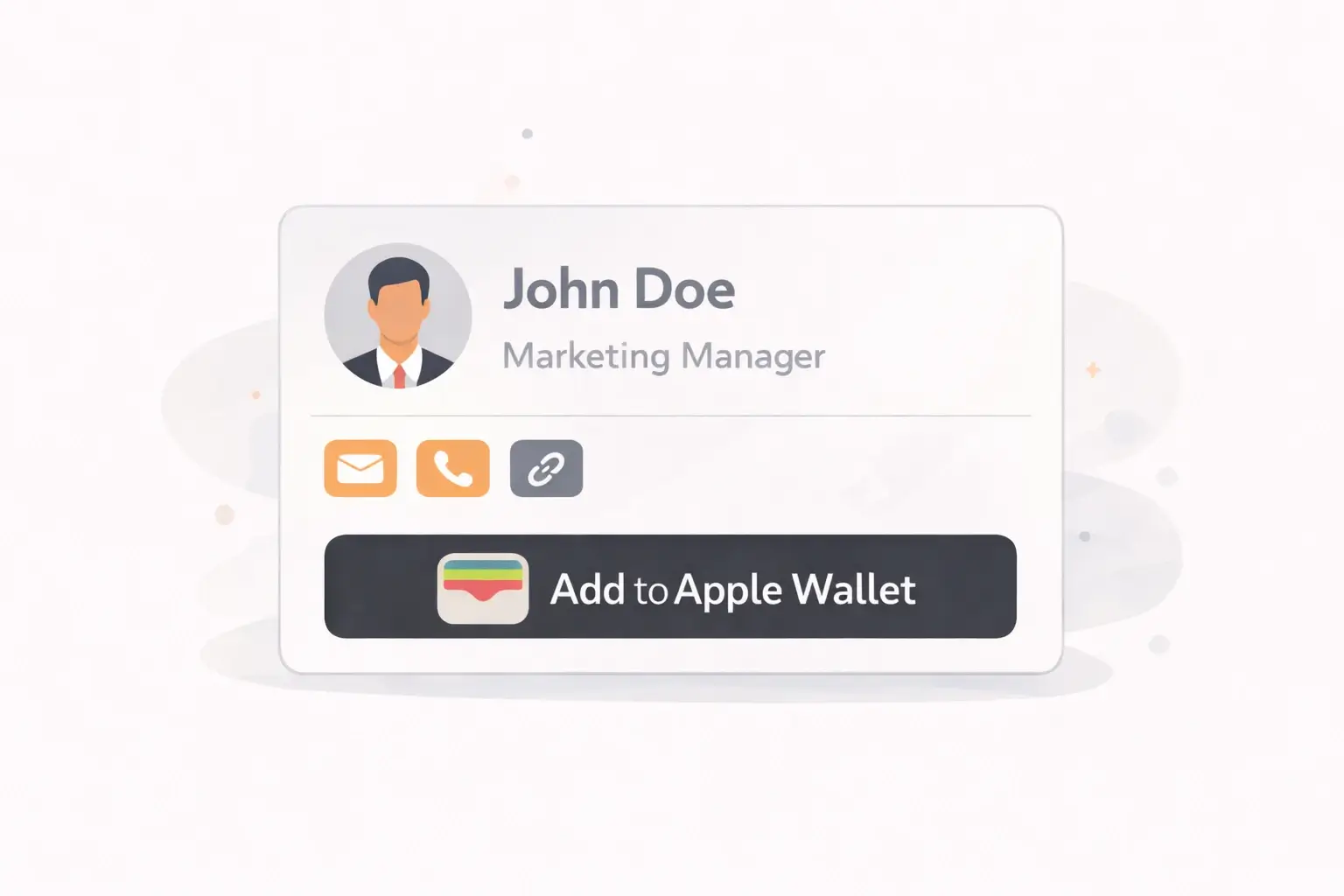
A button on your card page: Add to Apple Wallet
-
A share menu option: Save to Wallet
-
A download link that gives you a .pkpass file
Step 3: Open the pass on your iPhone
Once you tap the Apple Wallet pass, iOS should automatically open a Wallet preview screen.
If you created the pass on desktop:
-
Email it to yourself, AirDrop it, or open it from iCloud/Drive on your phone
-
Tap the pass file to open
Step 4: Tap “Add” in Apple Wallet
You’ll see a preview of the pass with an Add button (top right). Tap Add and your digital business card will be stored in Apple Wallet.
Step 5: Access it quickly (so you actually use it)
Two fast ways:
-
Open Wallet app → find your card pass
-
Double-click the side button (Face ID iPhones) to open Wallet instantly
Pro tip: Put your business card pass near the top of your passes so it’s always easy to find.
How to Add a Digital Business Card to Google Wallet (Android)
Google Wallet is the Android equivalent of Apple Wallet. The flow is similar: get the pass link, preview it, and save it.
Step 1: Open your digital business card on your Android device
Open your Cardikit digital business card (or whatever platform you use) in Chrome.
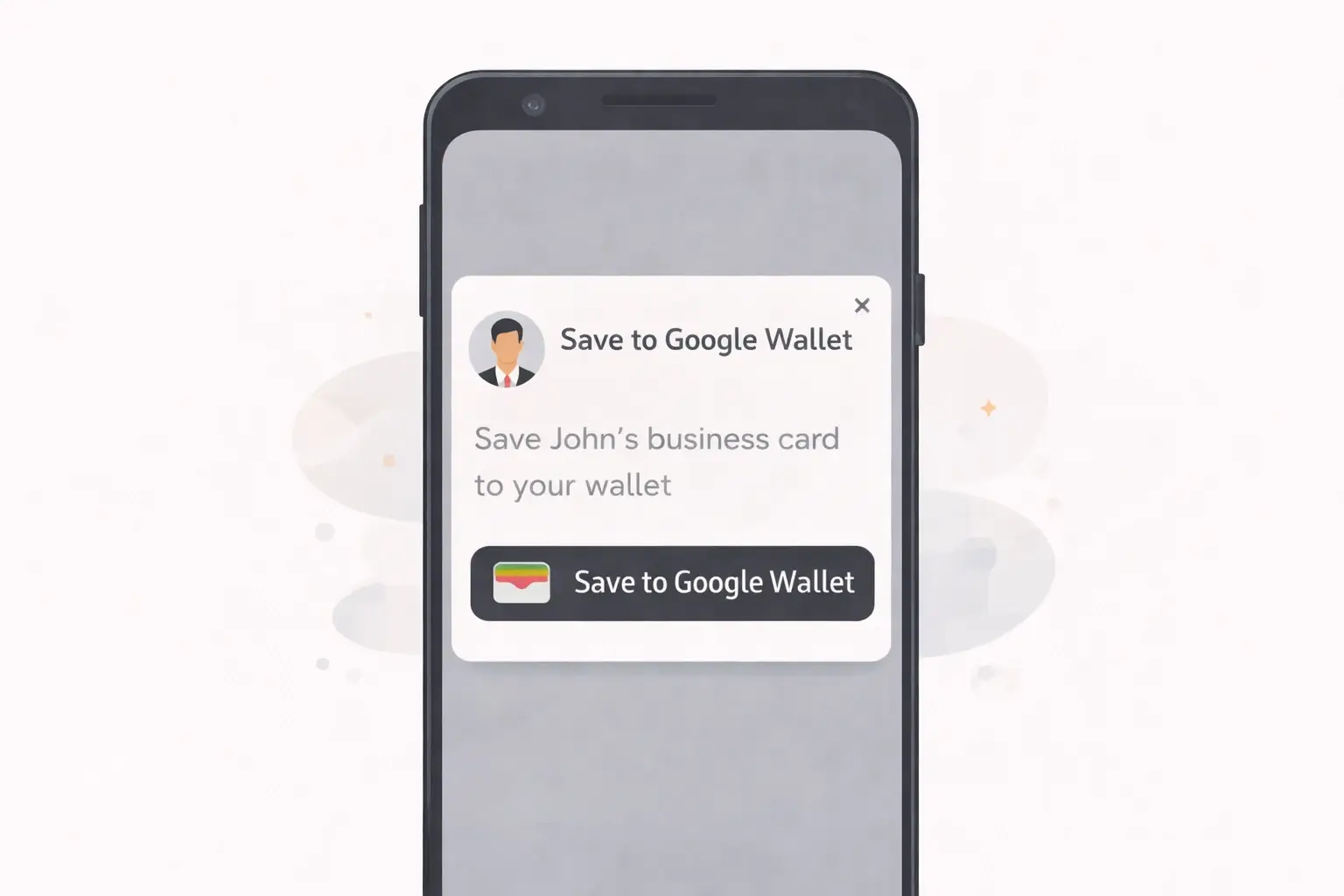
Step 2: Tap “Add to Google Wallet” (or “Save to Google Wallet”)
Most wallet pass tools provide a button like:
-
Add to Google Wallet
-
Save to Google Wallet
-
Add pass
If you’re given a pass link, it will open Google Wallet directly.
Step 3: Confirm the pass in Google Wallet
Google Wallet will show a preview of the pass. Tap Add or Save.
Step 4: Verify it’s saved
Open the Google Wallet app and look under passes. Your digital business card should be stored there.
Quick access tip (some Android phones):
- You can enable wallet access using the power button shortcut (varies by device).
How to Use Your Digital Business Card from Apple Wallet or Google Wallet
This is the part most guides skip: actually using it smoothly in real life.
The best method: show the QR code
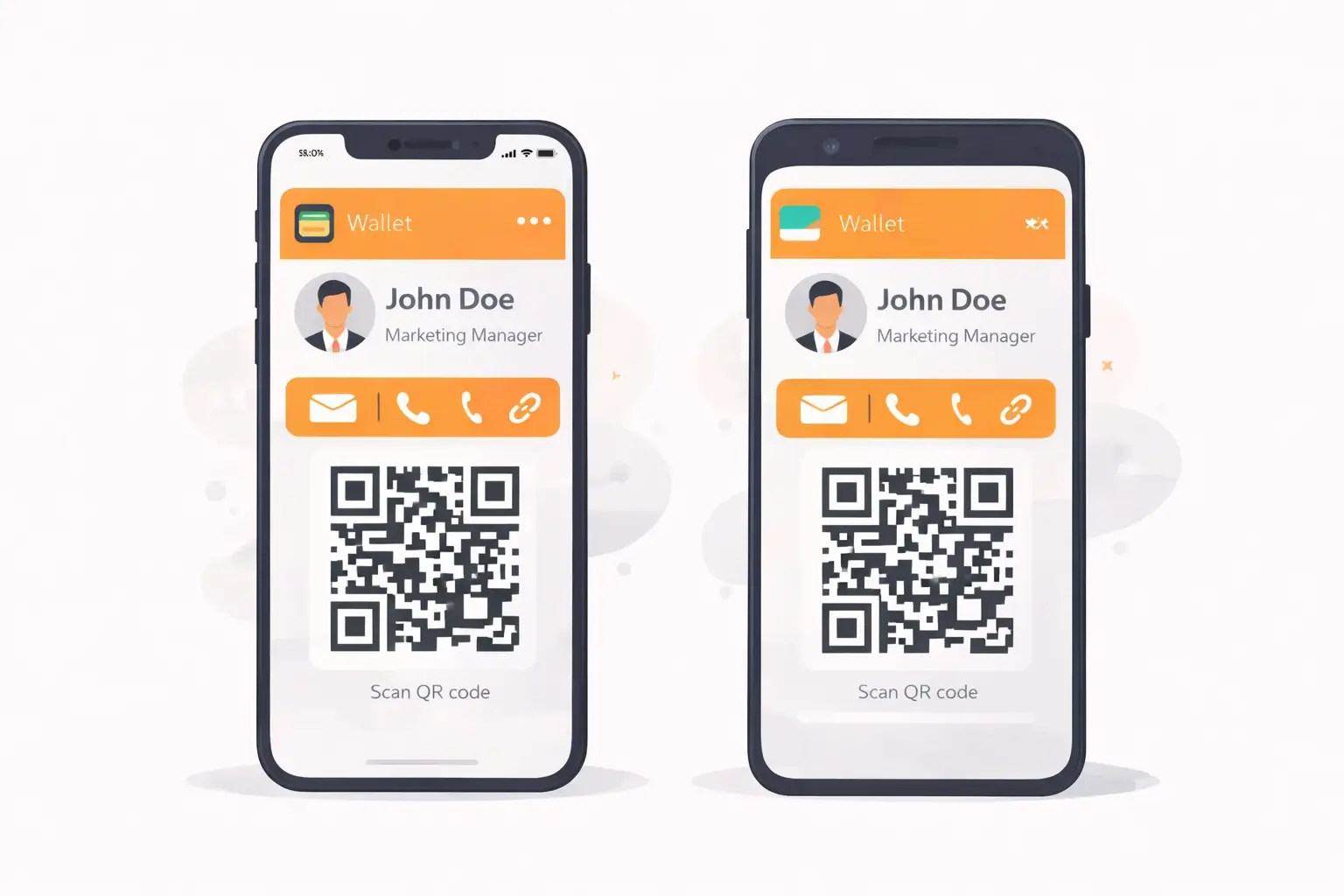
When your card is in Apple Wallet or Google Wallet, it usually displays a QR code (or a “show code” option). You open it and let the other person scan.
Works because:
-
iPhone camera can scan it
-
Android camera can scan it
-
The recipient doesn’t need an app
-
It opens instantly
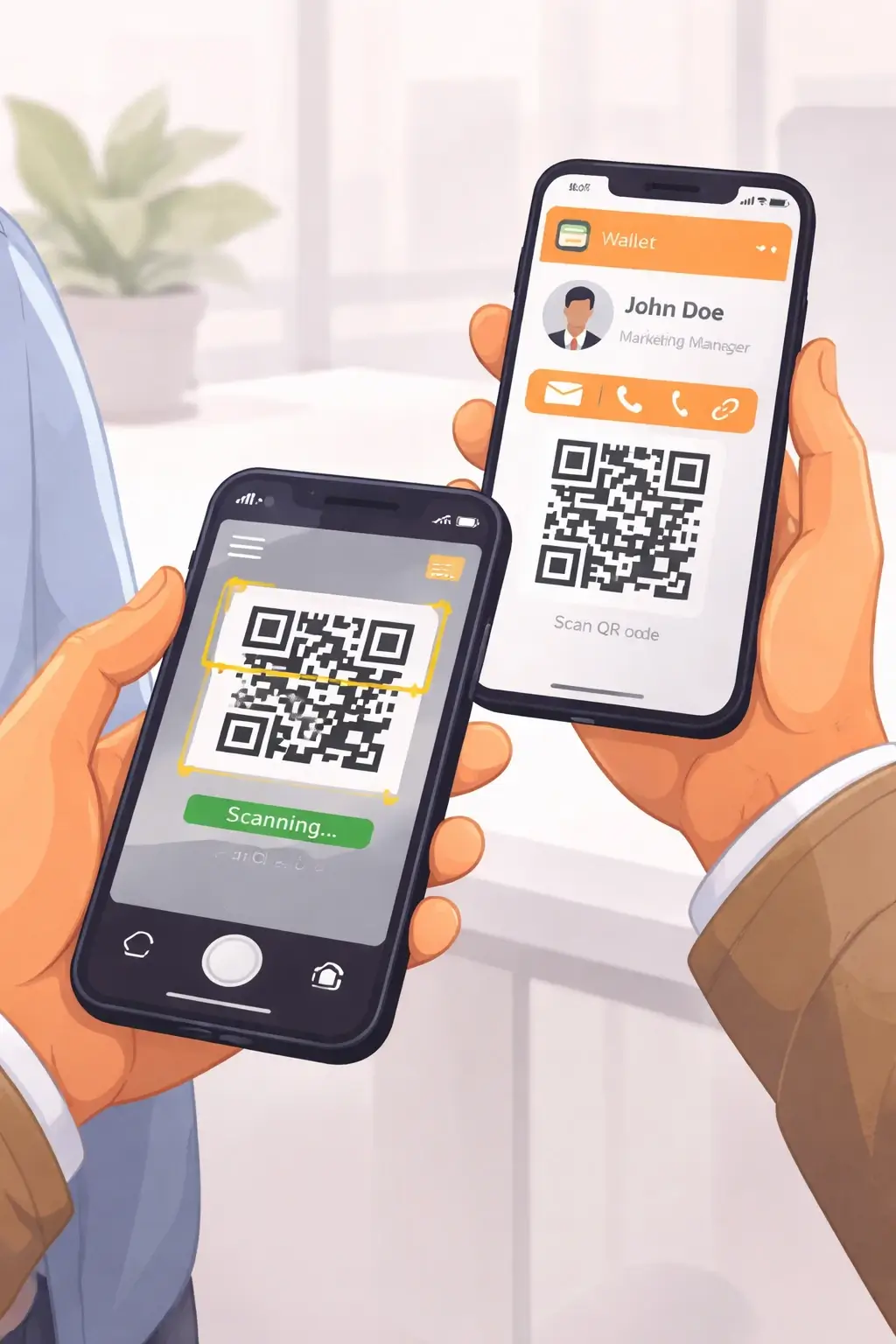
Other ways to share (depending on your setup)
-
Send the link via text/email/DM
-
NFC tap (if you have NFC enabled and your card supports it)
-
AirDrop (iPhone to iPhone)
If you want the full breakdown of sharing methods (QR vs NFC, best placement, and what converts best), it’s covered here: Digital Business Cards in 2026: The Ultimate Guide.
Troubleshooting: Common Apple Wallet & Google Wallet Issues
“I don’t see ‘Add to Apple Wallet’ anywhere.”
-
You may not have a wallet pass generated yet (Apple typically requires .pkpass).
-
Try opening your digital business card on Safari and look for “Add to Wallet” again.
-
If your platform doesn’t support Wallet passes, you may need a provider that does.
“My iPhone won’t open the .pkpass file.”
-
Make sure you’re opening it on the iPhone, not only on desktop.
-
Try opening it from:
-
Mail app attachment
-
Files app
-
iCloud Drive
-
-
If nothing happens, update iOS and try again.
“Google Wallet says the pass is invalid.”
-
Update Google Wallet
-
Make sure the pass comes from a trusted source/platform
-
Try opening the pass link in Chrome (not inside some in-app browser)
“Their phone won’t scan my QR code.”
Fixes that actually work:
-
Turn your screen brightness up
-
Hold the phone steady for 1–2 seconds
-
Try a slightly different distance (too close can fail)
-
If needed: just text them your card link as backup
“Can I update my info after it’s in Wallet?”
Yes. This is one of the biggest benefits of a digital business card. You update your profile once, and your shared version stays current. If your wallet pass doesn’t refresh automatically, you can regenerate the pass and re-add it.
Apple Wallet vs Google Wallet: Do You Need Both?
If you’re an iPhone user, you’ll mainly use Apple Wallet. If you’re on Android, you’ll mainly use Google Wallet.
But here’s the key point: QR codes are universal.
So even if:
-
You’re using Apple Wallet and they’re on Android
-
Or you’re on Google Wallet and they’re on iPhone
They can still scan your QR code and open your digital business card instantly.
Final Tips to Make Your Wallet Card Actually Useful
If you want your wallet digital business card to perform well in real networking situations:
-
Make sure your first screen has phone + email + LinkedIn
-
Use a clean headshot (people remember faces)
-
Keep your headline simple (Title + company)
-
Put your top CTA near the top (e.g., “Book a call”, “Get a quote”, “View portfolio”)
And if you want the “full system” for digital cards in 2026, what to use, how to design it, what tools are best, and what’s trending, go here: Digital Business Cards in 2026: The Ultimate Guide.
Ready to add your card to Apple Wallet & Google Wallet?
Once you set it up, you’ll wonder why you ever carried paper cards. Your digital business card becomes something you can share instantly, coffee meetings, job interviews, trade shows, or even in a quick “what do you do?” moment.
If you want a simple way to create a modern digital business card built for 2026 (with fast sharing and easy updates), Cardikit is a solid place to start. Create your card, then save it to Apple Wallet or Google Wallet so it’s always ready when you need it.